Quick answer: OwnRewards Member Link gives your loyalty program its own branded web page, like
yourbrand.ownrewards.io. Customers scan a QR code or tap a link, verify with a WhatsApp code, and see their points, coupons and tier on their phone. There's nothing to download. You choose your colours, logo, welcome message and which sections they see.
At the billing counter, 8:30 pm.
Cashier: Sir, download our app from Play Store, you'll get ₹100 off. Customer: (looks at the queue behind him, the slow Wi-Fi, his full phone) Leave it. Just bill it normally.
(An example. It happens at a lot of counters.)
That's the moment most loyalty programs lose a customer. Not because they don't want the ₹100 off. Because downloading an app at a billing counter is too much work.
The Problem with "Download Our App"
Many owners are told they need their own app on Play Store and the App Store. Here's what usually happens:
- It's expensive. Building and maintaining two apps (Android and iPhone) costs a lot, and every update costs again.
- Customers won't download at the counter. A big download, weak Wi-Fi, a forgotten password, a queue behind them.
- It gets deleted. Even if they download it, your app sits among dozens of others, and the first time their phone is full, it goes.
Your customers don't want another app. They want to see their points and use their coupon, quickly.
What Is OwnRewards Member Link?
Member Link is your loyalty program's own web page, with your brand on it.
- One permanent link: for example
yourbrand.ownrewards.io - One QR code for tables, counters and bills
- Opens in the phone's browser: no Play Store, no download, no password
- Verified with a WhatsApp code, so only the customer sees their account
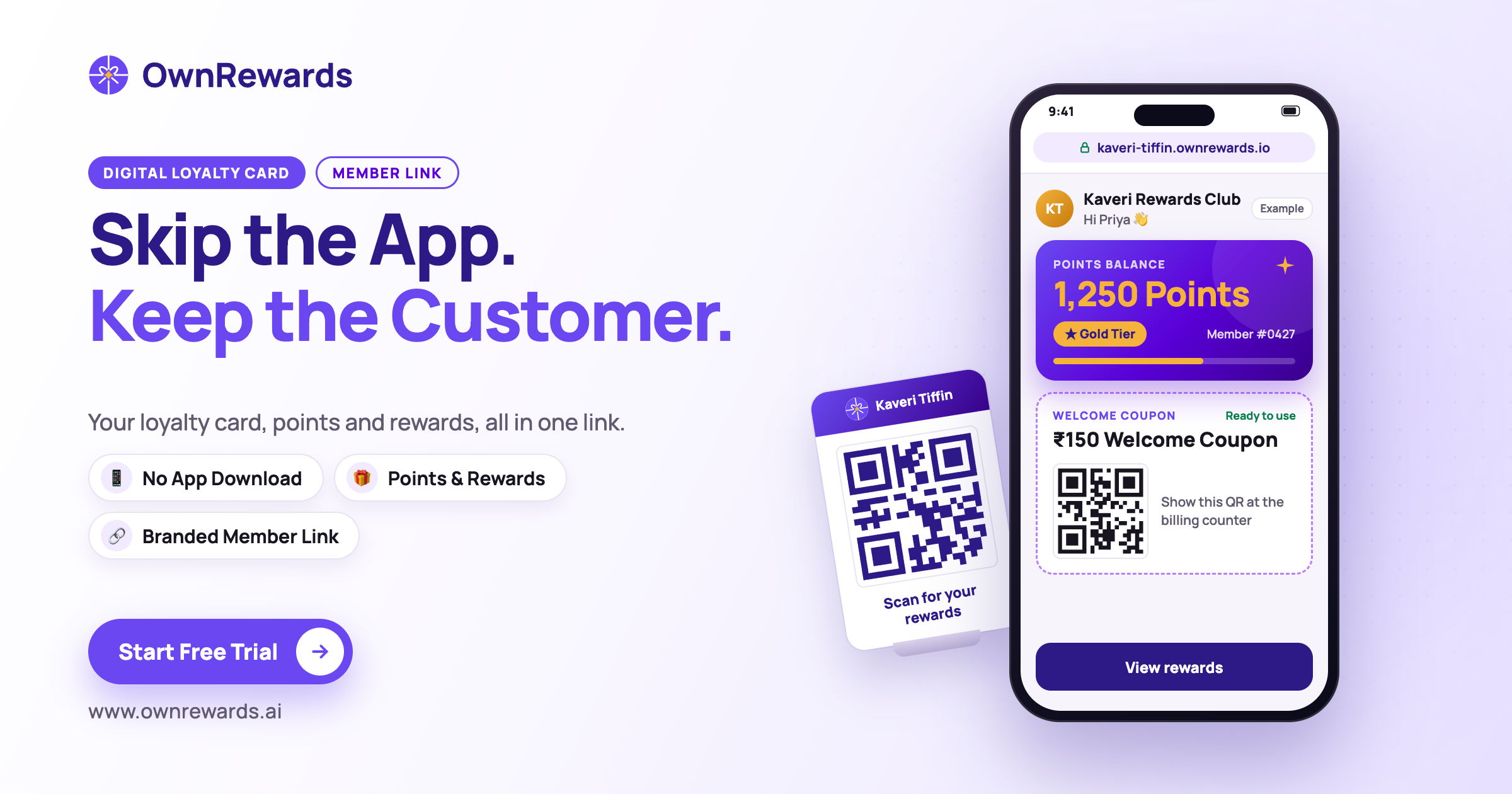
When a customer opens it, they see their digital loyalty card: points, coupons, rewards and tier, all in one place.
From QR Scan to Billing
- The customer scans the QR on the table or counter. Your branded page opens in their browser.
- They enter their mobile number and verify with a code sent on WhatsApp.
- Their member card appears: for example, 1,250 points, Gold tier and a ₹150 welcome coupon.
- At billing, they show the QR on their card. The cashier scans it, the discount is applied and new points are added.
Next time, they just open the same link. They can also add it to their home screen, with your brand's icon and name: Android shows a one-tap install prompt, and on iPhone it's Share → Add to Home Screen.
Make It Look Like Your Brand
In your OwnRewards workspace, go to Customers → Members → Member portal. Customers see your changes the next time they open their card.
| Setting | What you can do |
|---|---|
| Brand link and QR | Pick your link name once, and download a print-ready QR for tables, counters and bills |
| Colour | Use your brand colour for the header, buttons and card |
| Banner | Upload a 3:1 banner with your logo or a current offer |
| Wallet name | Call it what you like, e.g. "Kaveri Rewards Club" |
| Welcome message | Greet customers by name with tags like {firstName} and {brand} |
| Terms | Add your redemption rules, e.g. "In-store only. Offers can't be combined." |
| Live preview | See how the card looks on a phone, with sample data, before you save |
When Priya opens her link, she sees something like:
Hi Priya 👋 You have 2 coupons and 2 rewards ready to use at Kaveri Tiffin Centre.
Choose What Customers See: 8 Sections
Not every business runs the same loyalty program. Turn each section on or off with one switch.
| Section | What the customer sees |
|---|---|
| Coupons | Active coupons with a QR and code for the cashier |
| Rewards | Rewards they've unlocked, like a free dessert |
| Loyalty | How they earn, e.g. "1 point for every ₹100 spent" |
| Tier progress | Their tier and what's needed for the next, e.g. "Spend ₹3,200 more to reach Platinum 👑" (needs a tier programme) |
| Points expiry | Points about to expire, e.g. "150 points expire on 31 Dec" |
| Invite friends | A one-tap WhatsApp button with their own [referral](https://ownrewards.ai/blog/customer-referral-program) link (needs an active referral programme) |
| How to use | A simple 3-step guide to redeeming at the counter |
| Transactions | Every visit, points earned and redeemed, and which branch |
Tip: a coffee shop may only need Coupons, Loyalty and How to use. A multi-outlet restaurant may want all eight. Start simple and add more later.
Your Own App vs Member Link
| Your own app (Play Store / App Store) | OwnRewards Member Link | |
|---|---|---|
| Cost to build | Separate Android and iPhone apps to build and maintain | Included with every OwnRewards plan |
| Time to launch | Months, plus app store reviews | Set up in minutes |
| What the customer does | Find, download, create an account | Scan, enter number, verify on WhatsApp |
| Updates | New app version each time | Change it in your workspace; customers see it next time they open the link |
| Phones | Separate builds for Android and iPhone | Works in the phone's browser |
Set Up Your Member Link
- In your OwnRewards workspace, open Customers → Members → Member portal.
- Claim your link name, for example
kaveri-tiffin. - Upload your 3:1 banner and pick your brand colour.
- Write your wallet name and welcome message.
- Turn on the sections you need: start with Coupons, Rewards and Loyalty.
- Download the QR and print it for tables, counters and bills.
- Save. Then scan the QR with your own phone and check how it looks.
Good to Know
- Customers verify with a WhatsApp code, so their points stay theirs.
- Your brand leads. Customers see your name, colour and banner. OwnRewards stays in the background.
- Customers see changes when they next open their card, so keep your terms and offers up to date.
- Tier progress and Invite friends need those programmes running. Set up your tiers and referral programme first, then switch the sections on.
- Train your cashier on one line: "Scan this, enter your number, and your points are ready."
Frequently Asked Questions
What is a digital loyalty card?
A loyalty card on the customer's phone instead of paper or plastic. With OwnRewards Member Link, it shows their points, coupons, rewards and tier on your branded page.
Do customers need to download an app?
No. Member Link opens in the phone's browser. They can add it to their home screen if they like.
How do customers log in?
They enter their mobile number and verify with a code sent on WhatsApp. No password.
Can I use my own brand colours and logo?
Yes. Set your colour, upload a 3:1 banner, and choose the wallet name and welcome message.
Can I hide sections I don't use?
Yes. Each of the 8 sections, like tiers or points expiry, can be turned on or off.
Where do I put the QR code?
On dining tables, the billing counter, bill folders, receipts and the entrance. Anywhere customers wait.
How much does it cost?
The Member Link is on every OwnRewards plan. Branding it (your colours, banner and section settings) is on the Growth plan and above. Plans start at ₹1,499 a month for one outlet, billed annually, with a 14-day free trial. See OwnRewards pricing.
Skip the App. Keep the Customer.
Your customers will scan a QR. They won't download an app at the counter. Give them their points in one scan.
New to OwnRewards? Start with how to bring customers back, then see how to send WhatsApp coupon campaigns.
👉 Start Free Trial → · Book a Demo
OwnRewards, from iEYAL, Thiruvarur.
Want repeat customers on WhatsApp?
Connect PetPooja POS, your own store and WhatsApp in minutes. Try it free for 14 days. Card at signup, charged after the 14-day trial. Cancel before day 14 and pay nothing.